Connecting GivEnergy devices
You’ll need to generate a GivEnergy API token. This is a unique code that allows us to connect to your inverter or battery.
Obtain a GivEnergy API Token
Step 1
Then, log in using your credentials.
Step 2
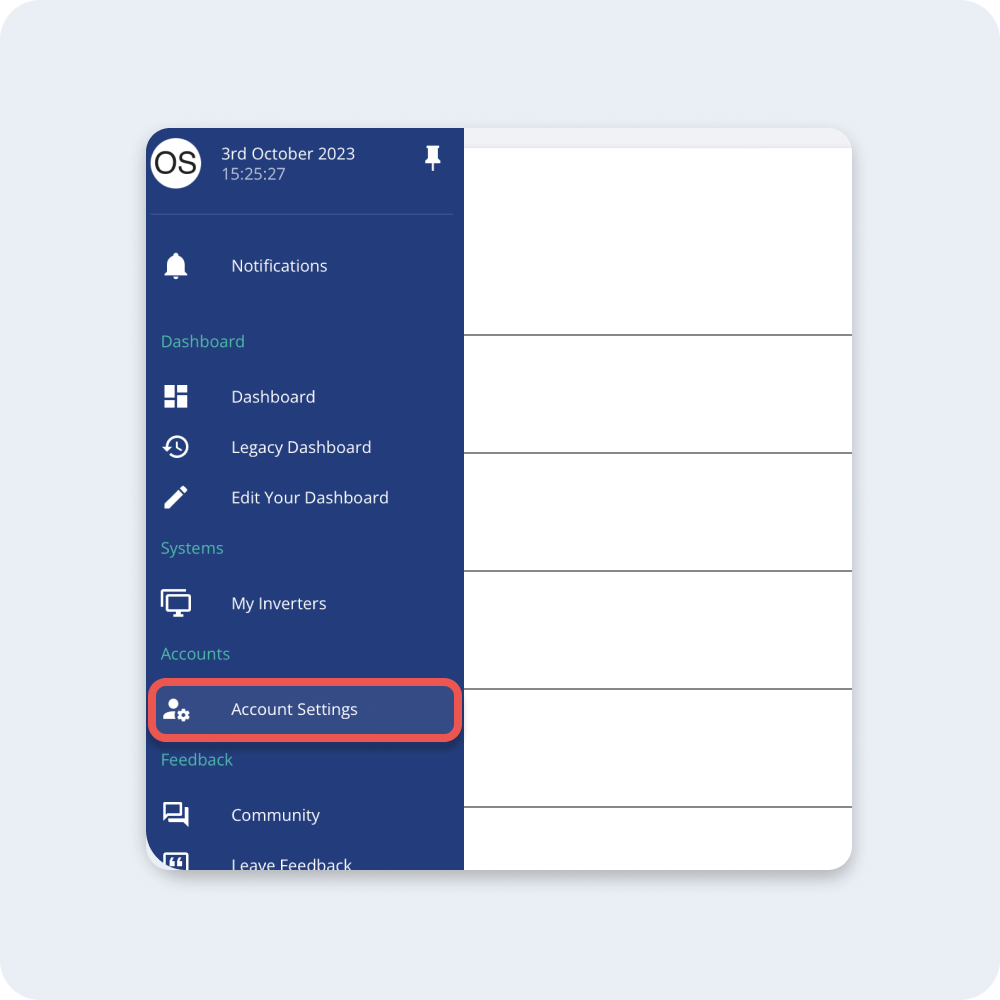
Log in to your account and select Account settings in the left side navigation. NOTE: If you are on mobile, the navigation will be at the bottom of the screen.
Step 3
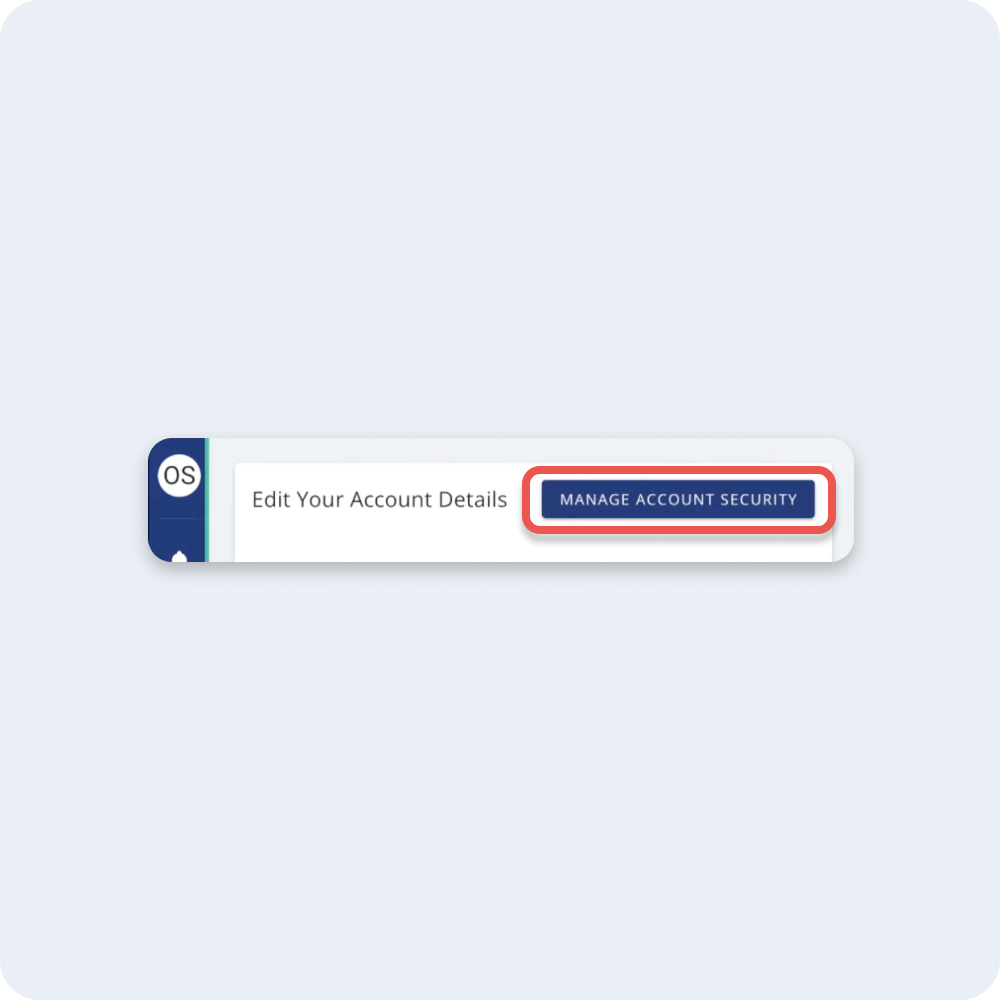
In the top right of Edit your Account details, select the Manage Account Security button.
Step 4
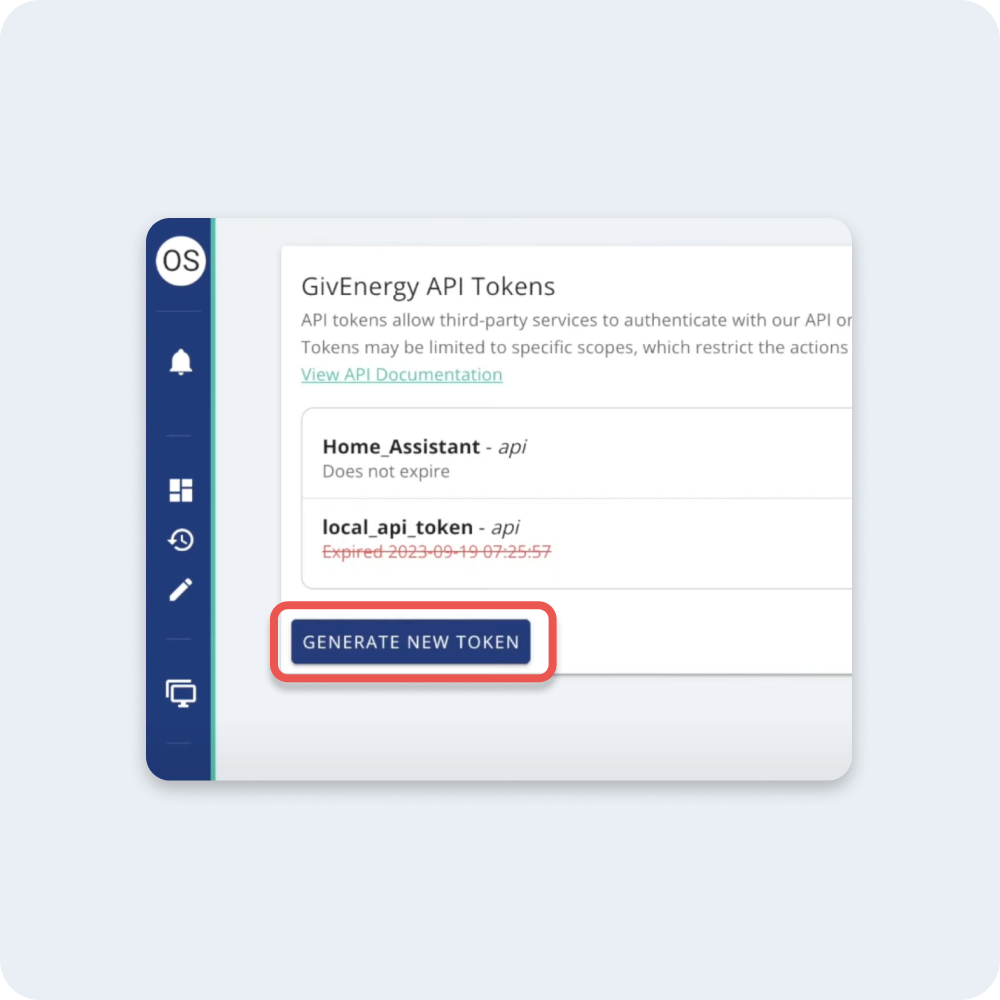
Click Generate New Token under the GivEnergy API tokens section in your account page.
Step 5
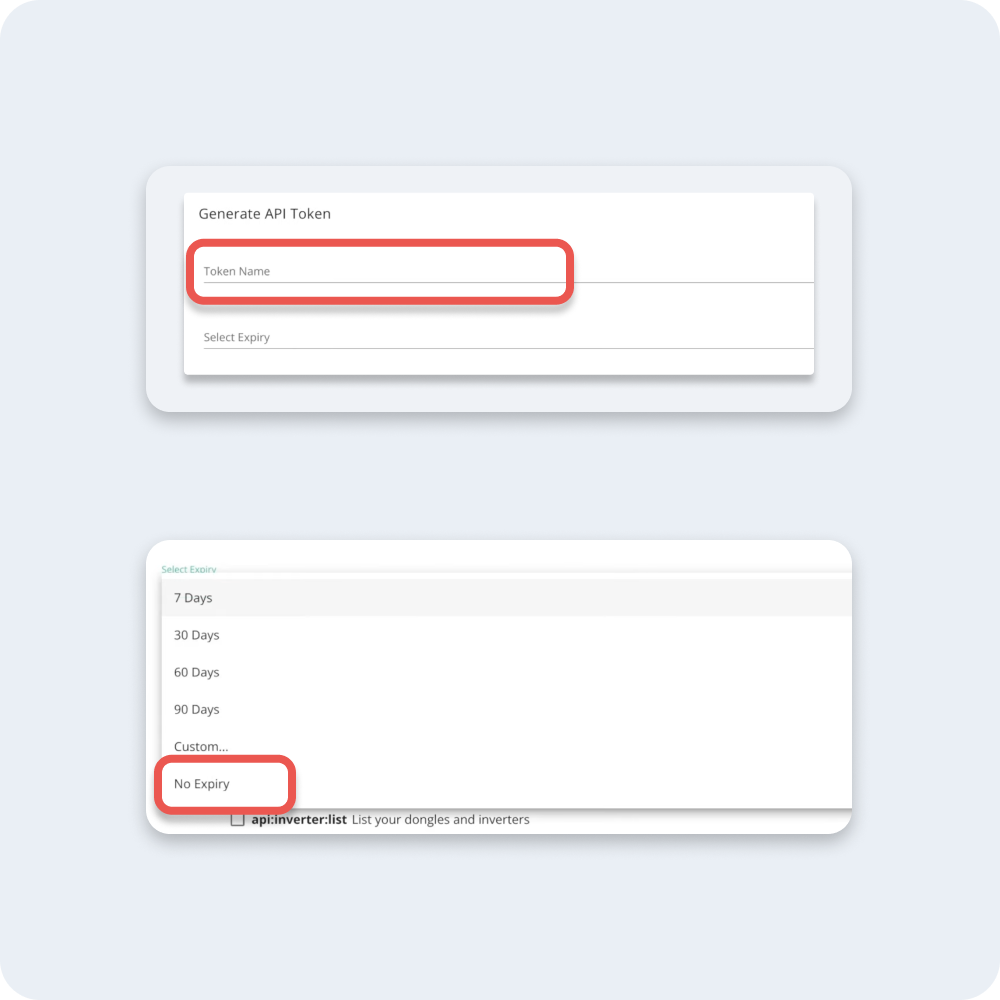
Enter a name, this could be anything you wish e.g. My GivEnergy token Select No Expiry so that the connection lasts as long as you would like (you can still disconnect your battery from the Zoa app whenever you wish).
Step 6
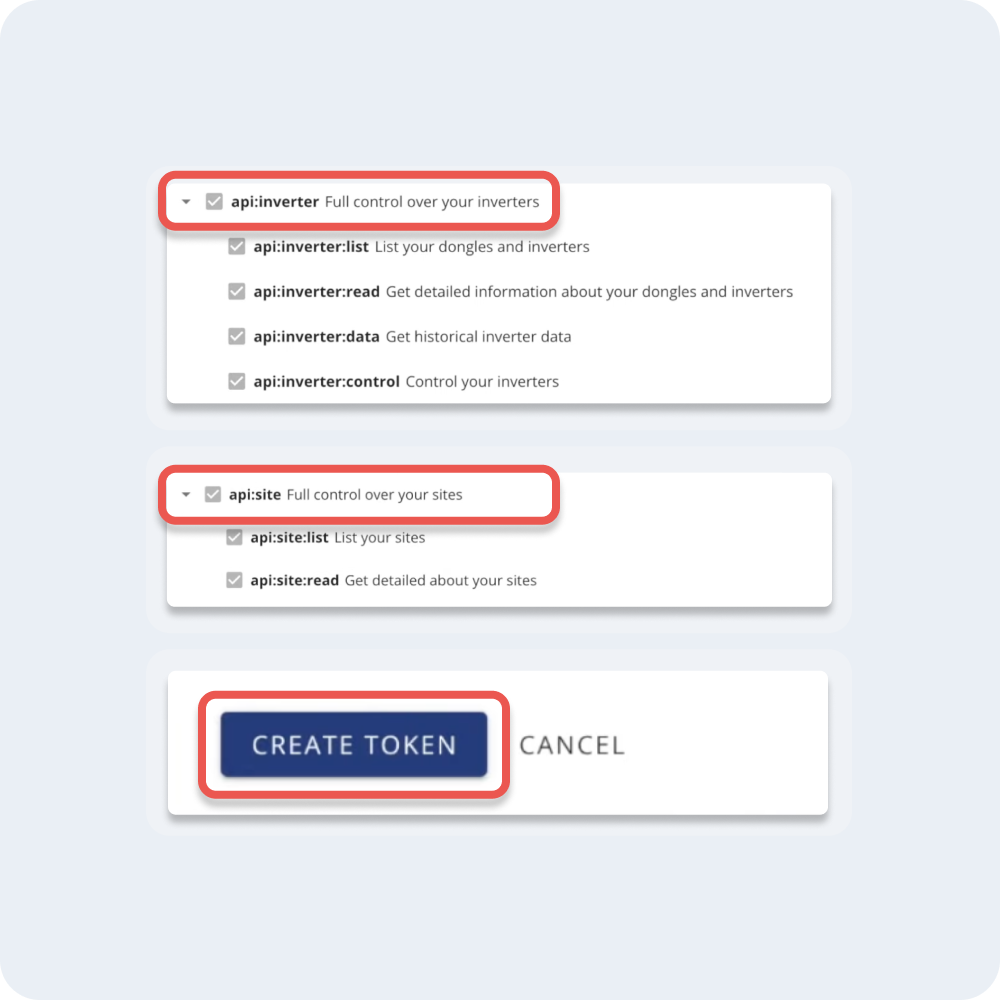
These are the token scopes you need to select then click Create Token: Check “api:inverter” Check “api:site”
Step 7
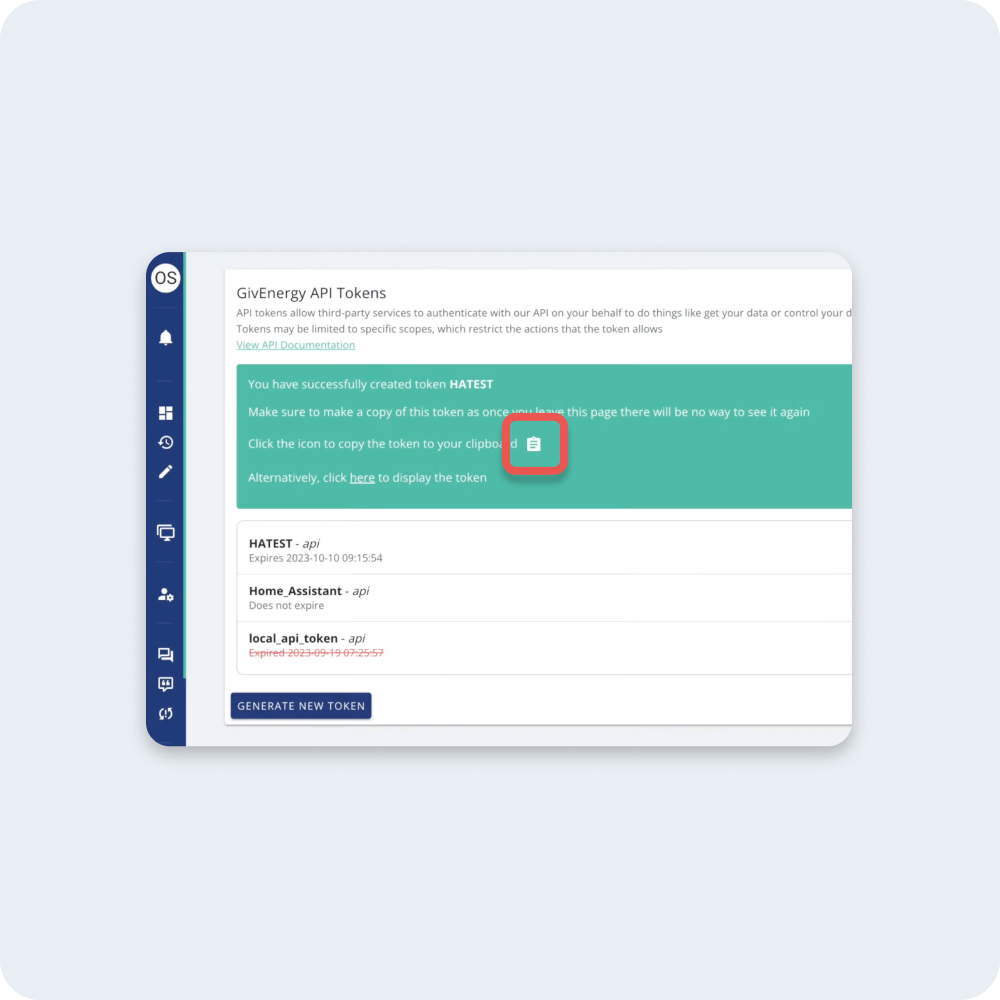
Once created. Copy your token to your clipboard or display token, then paste it. Save this token somewhere safe. GivEnergy will not allow you to come back and find this again.
Step 8
You’re all done. A reminder to copy this API token somewhere, then go back into the Zoa app.